I run BinarCode, a 30 person software company in Cluj-Napoca. I am not writing this as a neutral reviewer. We built the app I am about to show you, we use it every single day, and I want to be honest about why.
For two years the promise of a personal AI assistant felt slightly off to me. The models were genuinely good, but the assistant always lived in a browser tab, far away from the actual work. It could not see my screen, did not remember anything about me between chats, and had no way to do something on a schedule without me babysitting it. So we built Routines, a personal AI assistant that runs natively on your Mac instead of in a tab.
The thing that surprised me most was not the technology. It was who ended up using it. I assumed a Mac AI app full of automations would be an engineer toy. Instead our designers, our project managers, our sales people, and yes the C-level folks like me reached for it more than the developers did. This post is the honest version of how that happened, with real screenshots of the actual app, not mockups.
What I mean by a personal AI assistant
Most tools sold as the best ai personal assistant are really just a chat box with a nicer logo. A real assistant should do four boring but important things: act on its own on a schedule, remember who you are, look at what is on your screen, and help with the small text chores you do fifty times a day. Routines does those four things, and it does them locally.
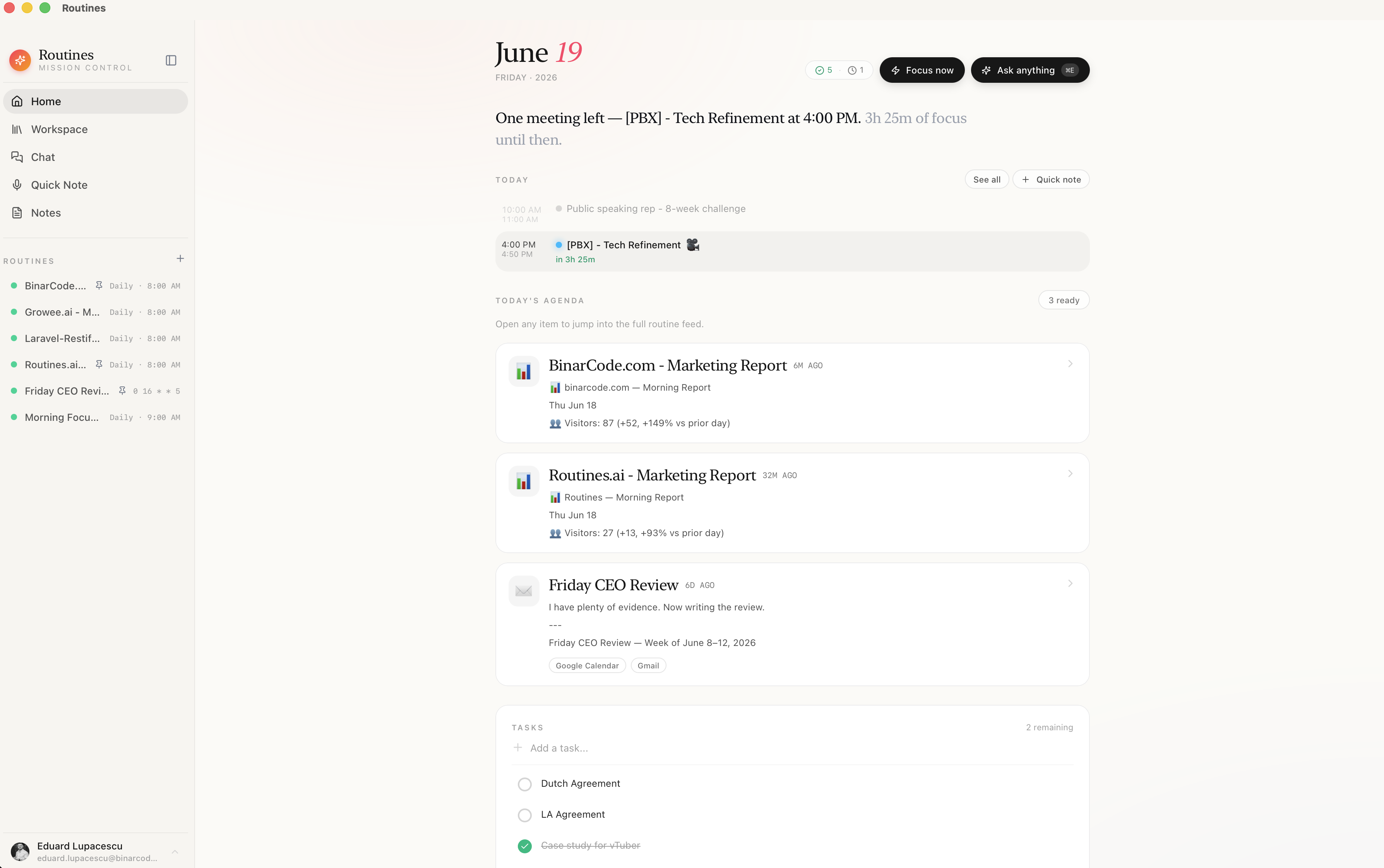
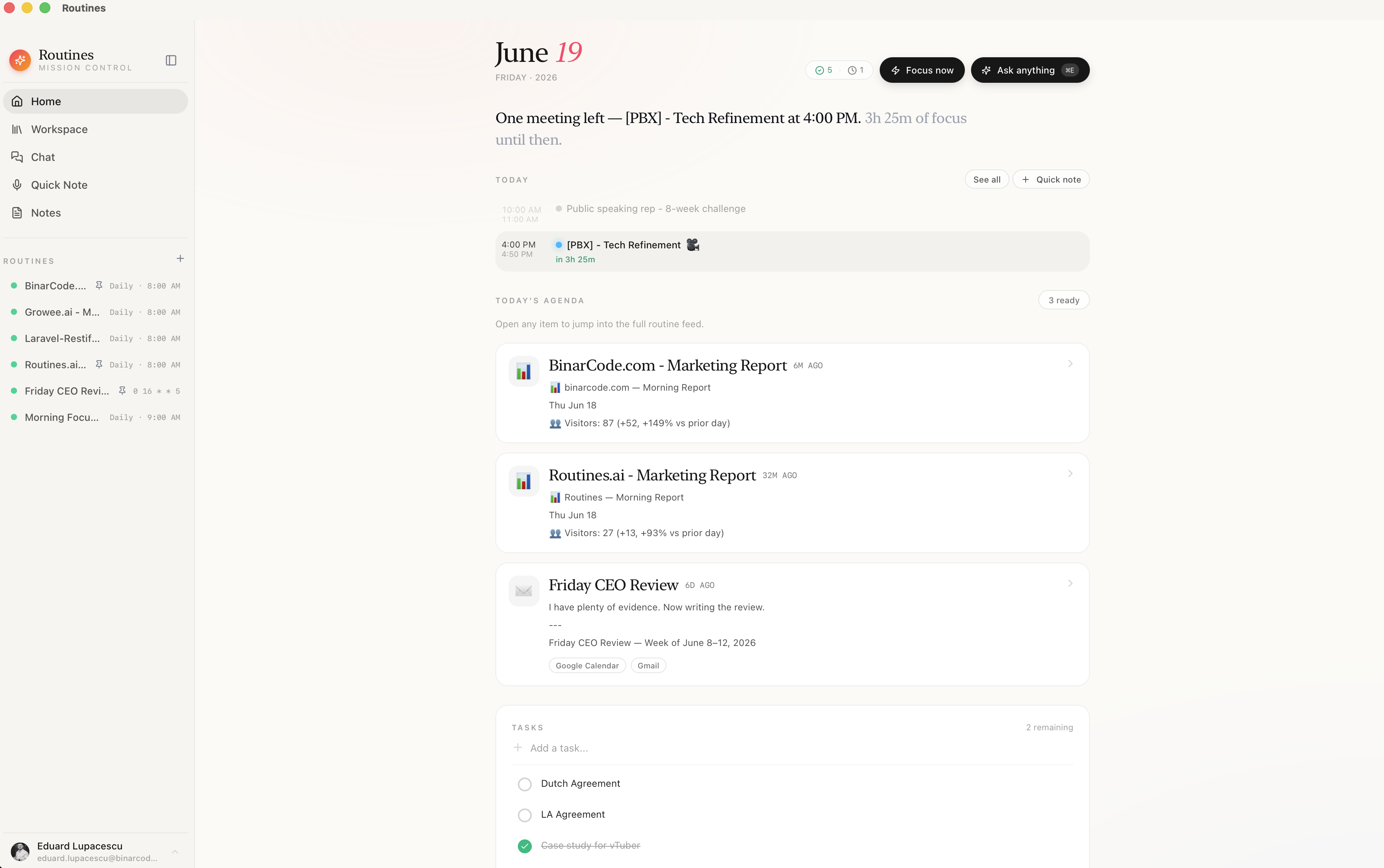
Here is the home screen, which we call Mission Control. Your day, your scheduled routines, and your upcoming meetings in one place.
1. Routines: an AI assistant that works while you are asleep
The feature we named the product after. A routine is an AI automation that runs on a schedule, locally, without you starting it.
My first one is a morning briefing. Every weekday at 8:00 it reads my calendar and my inbox and writes me a short plain-language summary before I open my laptop. No dashboard to check, no prompt to type. It is just there when I sit down.
The team built their own without any help from engineering. One project manager has a routine that drafts her standup notes from the previous day. Our sales lead has one that summarizes the important Slack threads at 17:00 so nothing slips. This is the part that makes it an ai personal assistant for work rather than a novelty: it shows up on time, every time.
You can read more about how scheduling works on the Routines feature page.
2. A second brain that the assistant actually reads
A chat assistant that forgets you after every conversation is exhausting. So Routines ships with a local, Obsidian-style memory workspace we call your second brain. Plain markdown files, your folders, your notes, all on your machine.
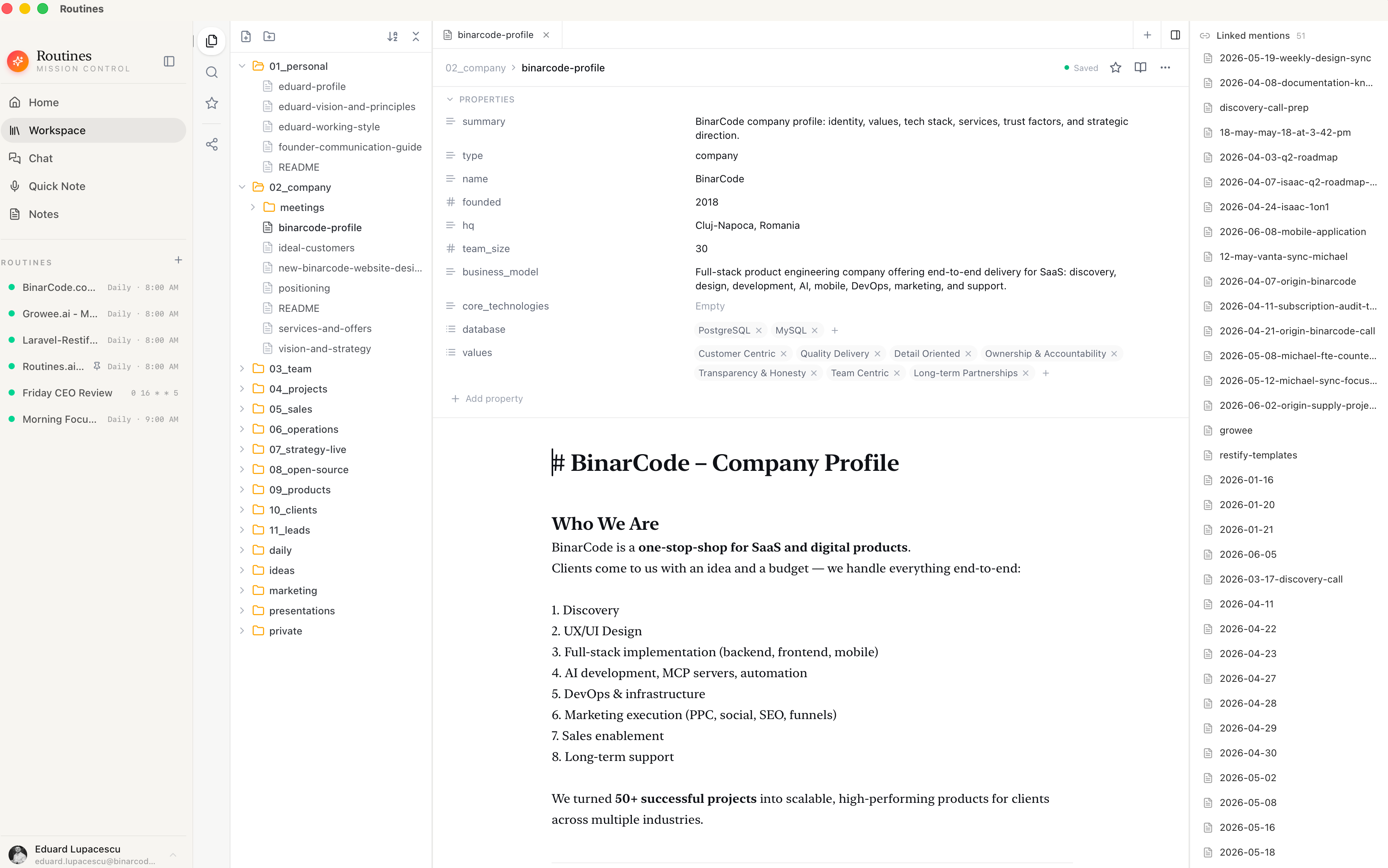
The point is not that you get another note app. The point is that every routine and every chat can read this memory as context. When my briefing knows my current priorities, or when the assistant answers using how our company actually works, it is reading from here. An ai second brain that the assistant uses is very different from notes that just sit in a drawer.
This is also why non-engineers took to it. You write notes the way you already write notes, and the assistant gets smarter about you for free. More on this on the Memory feature page.
3. Meeting recordings that feed your second brain
This is the feature that quietly changed how my week runs. When a Google Meet, Zoom, Teams, or Slack huddle starts, Routines records it with one click. The transcript flows live while people talk, your mic and the room audio are kept as separate streams so it knows who said what, and when the call ends Claude writes a one-page summary with the key points, the decisions, and who owns what.
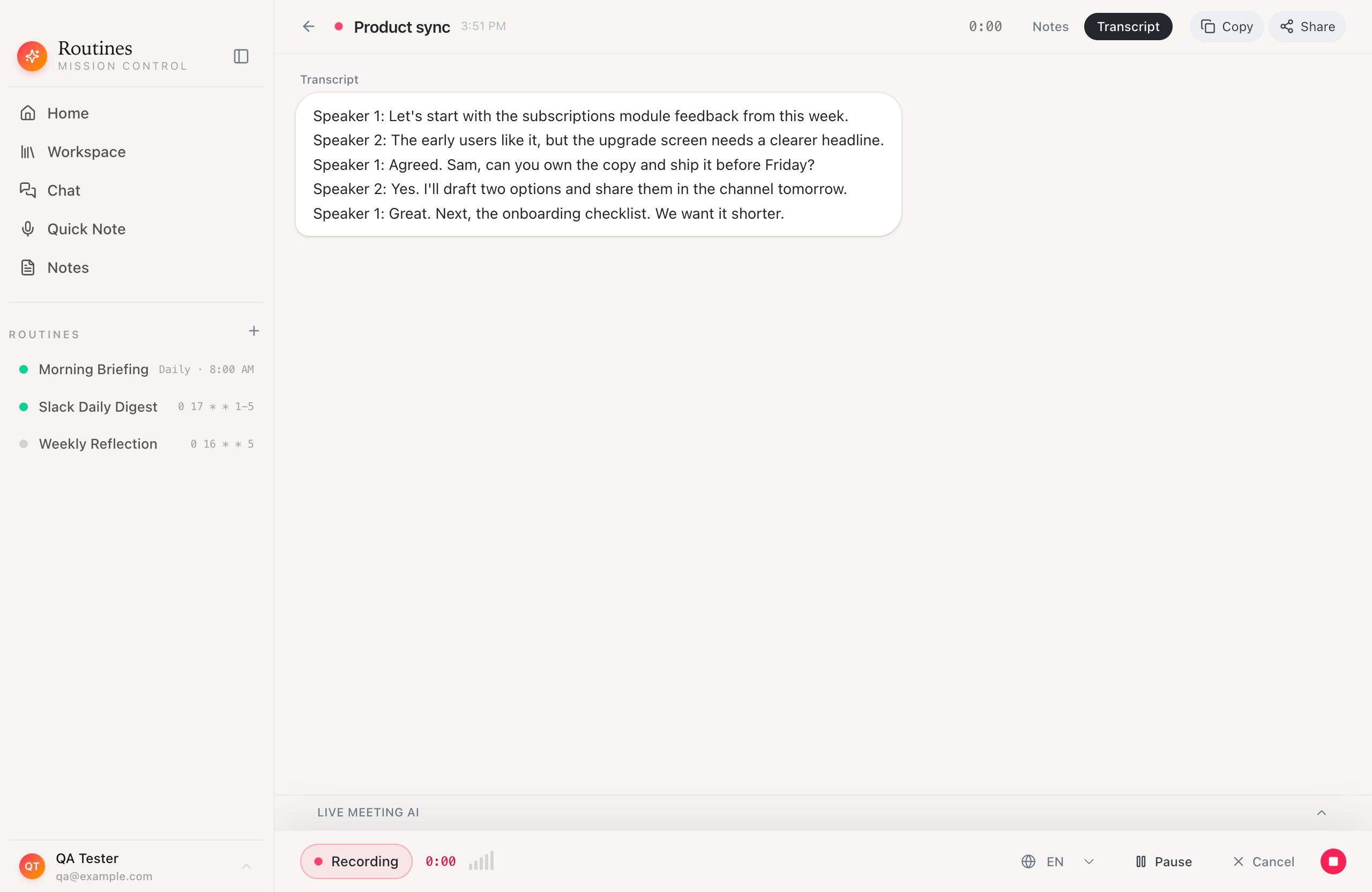
The part I care about is where that summary goes. It does not just sit in a meeting tab you forget about. The summary lands in your local memory as a markdown note, so it becomes part of the second brain the assistant already reads. A week later I can ask “what did we decide about pricing” and the answer comes from the actual meeting, because the meeting is now permanent local knowledge, not a transcript I have to dig for. Every transcript and summary lives in local SQLite on your Mac and is never uploaded, with a Whisper fallback so it keeps transcribing even offline. The full breakdown is on the meeting recording feature page.
4. A global chat that brainstorms with your notes
Because the second brain and your meetings now live in one place, the chat becomes genuinely useful instead of generic. Open the chat from anywhere in the app and your routines, your connectors, and your notes are already available as context. You are not pasting background into a blank box. You are reasoning with an assistant that already knows your company.
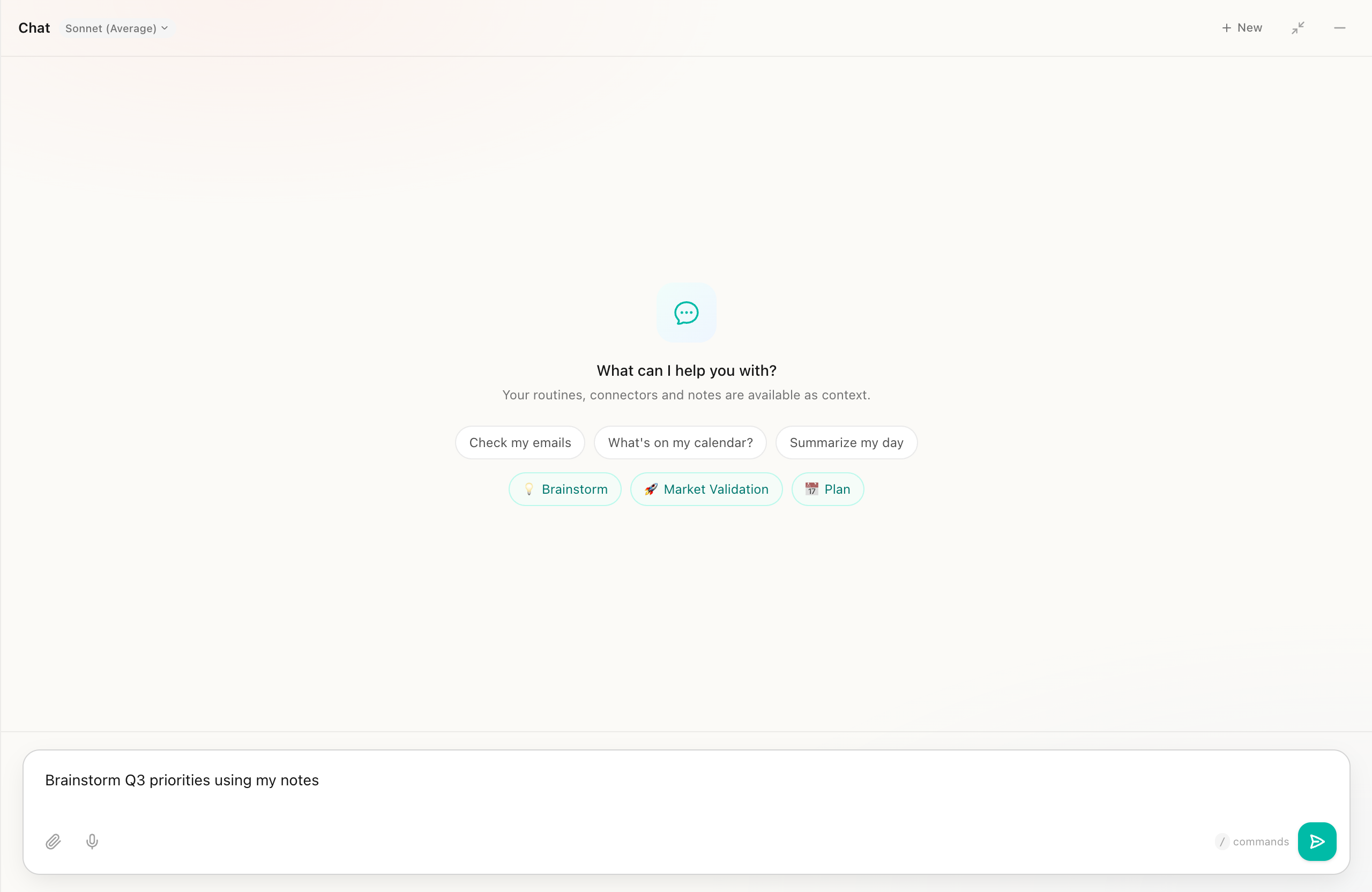
I use the Brainstorm command for the messy thinking. “Brainstorm Q3 priorities using my notes” pulls from what is actually written down, the meeting summaries, the company context, the half-finished ideas, and pushes back with something grounded rather than a list of platitudes. That is the difference an ai second brain makes once the assistant can read it: brainstorming stops being a cold start.
5. Take a screenshot and just talk to it
This is the feature I demo first when someone asks why a desktop assistant beats a browser tab. You take a screenshot and you talk to the AI about it. A chart you do not understand, an error dialog, a confusing invoice, a design someone sent you. Capture it, ask, done.
It sounds small. In practice it is the thing my non-technical colleagues use the most, because everyone has a screen full of things they would like a second opinion on.
Here is a short video of it in action:
And the assistant that answers is the same one that knows your routines, your connectors, and your second brain, so the context comes for free.
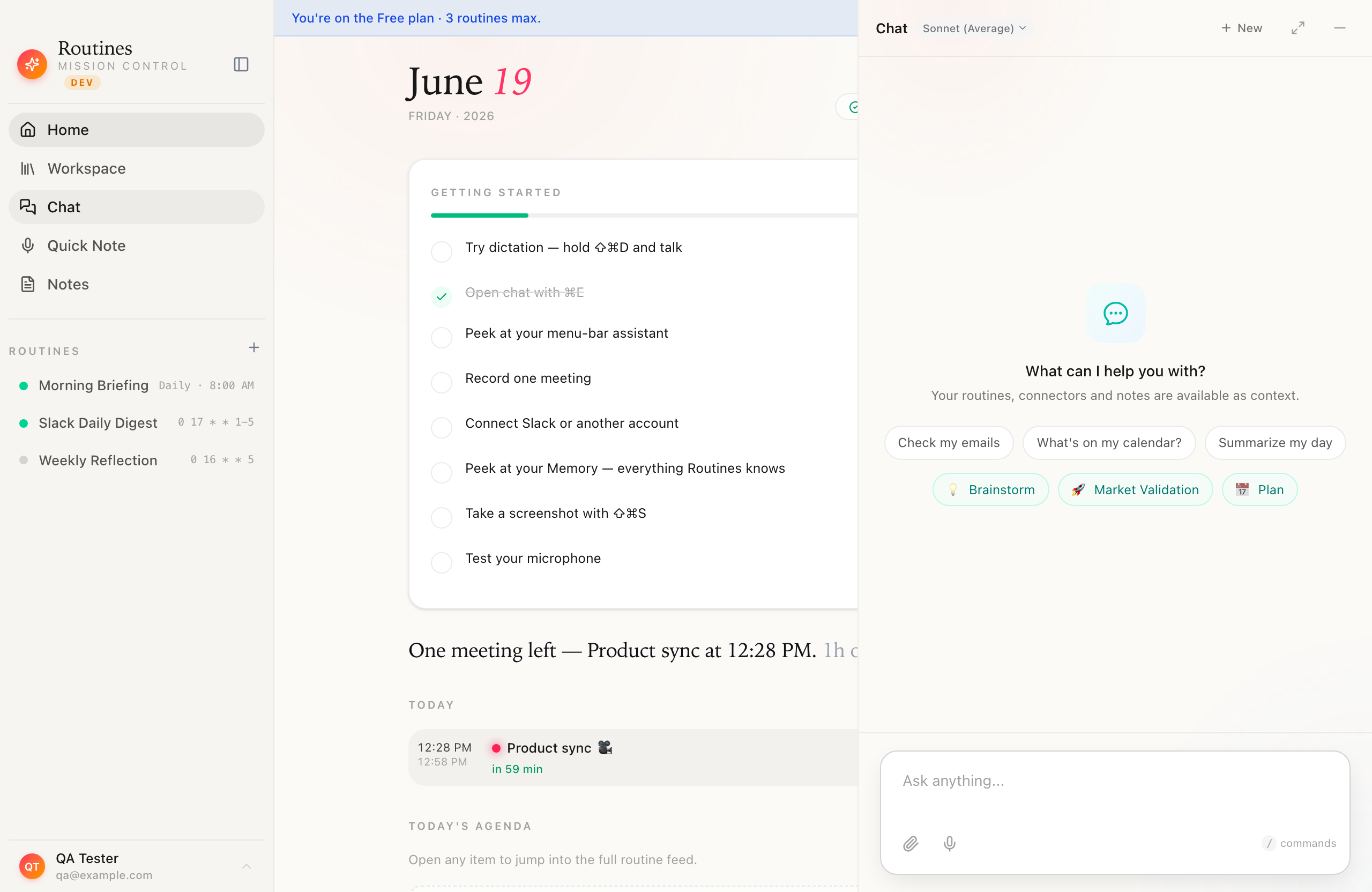
You can see this flow on the screenshot feature page.
6. A clipboard with your own AI quick actions
Last one, and it is deceptively useful. Routines keeps a clipboard history, and you can attach your own AI quick actions to anything you copy.
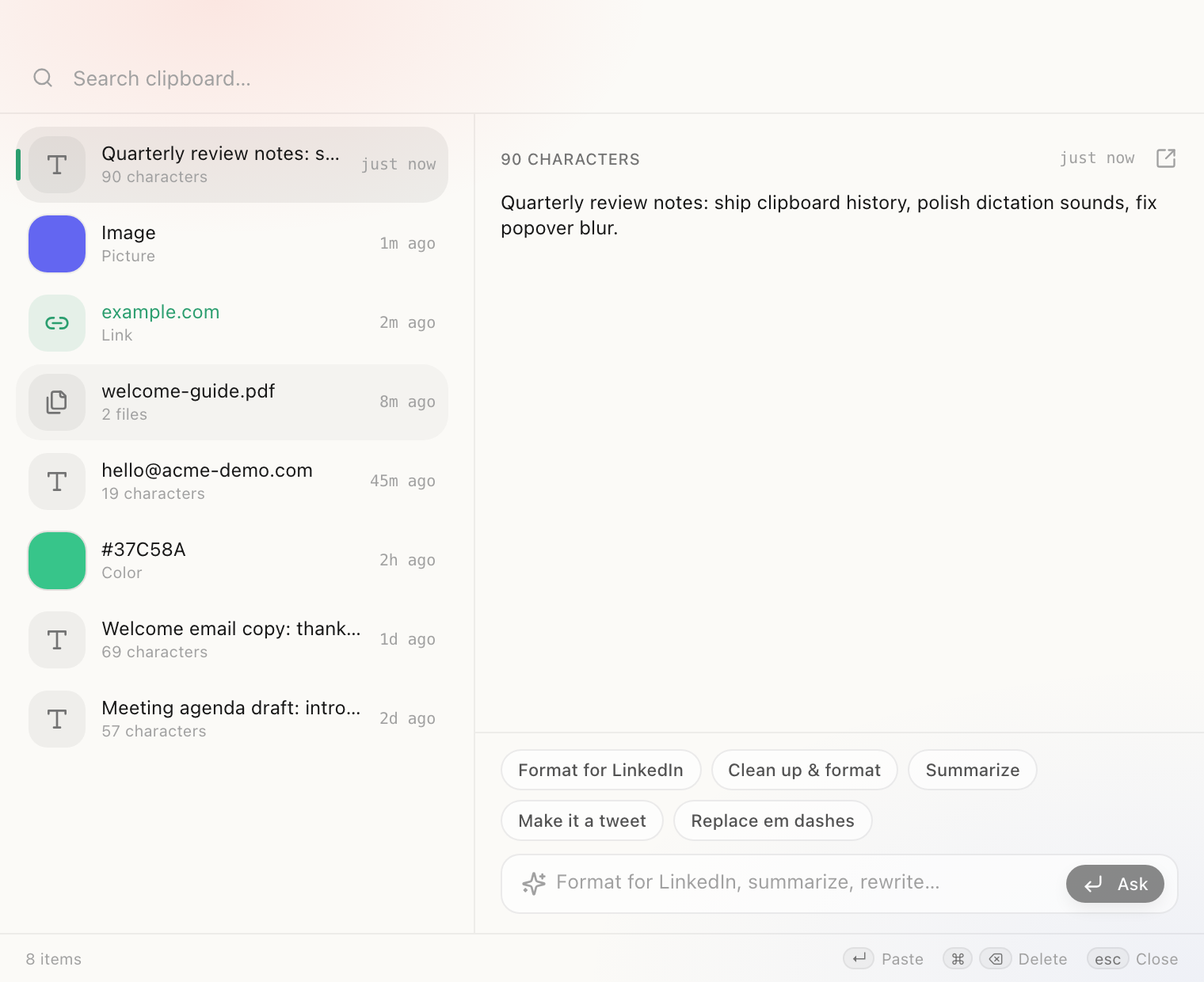
I have a “Format for LinkedIn” action that takes a rough paragraph and cleans it up the way I like to post. Other people on the team made “Summarize,” “Make it a tweet,” and “Clean up and format.” You copy text, pick an action, paste the result. It removes a whole category of tiny copy-paste-into-a-chat-window chores. Details are on the clipboard feature page.
7. Set it all up from Claude Code, if that is your thing
This one is for the builders, and it is the reason our engineers eventually came around. Routines ships a CLI, so everything the app does is reachable from the terminal. You can create and run routines, read email and calendar across connected accounts, search your memory, and read your meetings without leaving your shell.
# install the skill once, then let Claude Code drive the CLI
routines skill --install ~/.claude/skills

# or use it directly
routines run "Morning brief" --engine claude
routines memory search "pricing decision"
routines calendar today
The nice part is that the CLI installs as a skill for Claude Code with a single command, so you do not wire anything up. You just tell Claude to use it, and it configures routines and connectors for you in plain English. Local reads work anytime, email and calendar and runs go through the app, and nothing leaves your Mac. If you live in the terminal, this is how a personal AI assistant stops being a separate window and becomes part of your actual workflow. The commands are documented on the CLI feature page.
If you would rather talk than type, the same is true for input: you can press a key and dictate into any app on your Mac, all transcribed locally and pasted at your cursor. That is on the dictation feature page.
Why local matters, honestly
Here is the part I care about most, and the reason a private ai assistant is not just a marketing line for us. Routines is fully local. You bring your own Anthropic API key, there is no server in the middle, no account to create, and your data stays on your Mac. Your briefings, your second brain, your screenshots, and your clipboard never leave your machine.
For me as a founder this is not optional. I am not going to pipe my calendar, my inbox, and my company notes through someone else’s backend. For our clients in regulated work it is the difference between yes and no. An offline ai assistant posture, where the only outbound call is the model call you control, is what made the whole team comfortable putting real work into it. You can read exactly how this works on the privacy page.
So who is it actually for
If you are an engineer, you will enjoy the depth, and you can drive the whole thing from Claude Code and the CLI. But the honest takeaway from watching my own company is that the ai desktop assistant idea pays off most for the people who are not engineers. The PM who wants her standup drafted. The designer who wants to ask about a screen. The founder who wants a calm two-line briefing instead of inbox dread at 8am, and a meeting summary waiting in memory instead of a recording nobody rewatches. The salesperson who never wants to miss a Slack thread again.
That is the bar I think a personal AI assistant should clear. Not “look what the model can do,” but “this quietly did a real thing for me today, and I did not have to ask.”
If you are on a Mac, you can download Routines and try it. Bring your own API key, keep your data, and let me know what your first routine ends up being.

Author
Eduard Lupacescu
Leads BinarCode's vision and growth, with over 12 years building software products and teams. Focused on turning client challenges across Western Europe, the US, and Israel into reliable, business-driven engineering outcomes.